Wizart Home

Welcome to Wizart Home - Interior Design Solutions

Before you start integrating the visualizer, you will need to register in the PIM system (backend of the visualizer) at the following link: PIM admin tools.

The visualizer is one system with your PIM account, so for correct operation, don’t forget to upload products in the structure that will be described here. Full upload instructions: How to upload products into PIM system. This step is very important. Don’t forget to import products, or ask for help in setting up your PIM account here: [email protected].

All parameters are described in the settings, you can control many parameters, or set up the button yourself using CSS code. If you have any questions, contact here: [email protected].

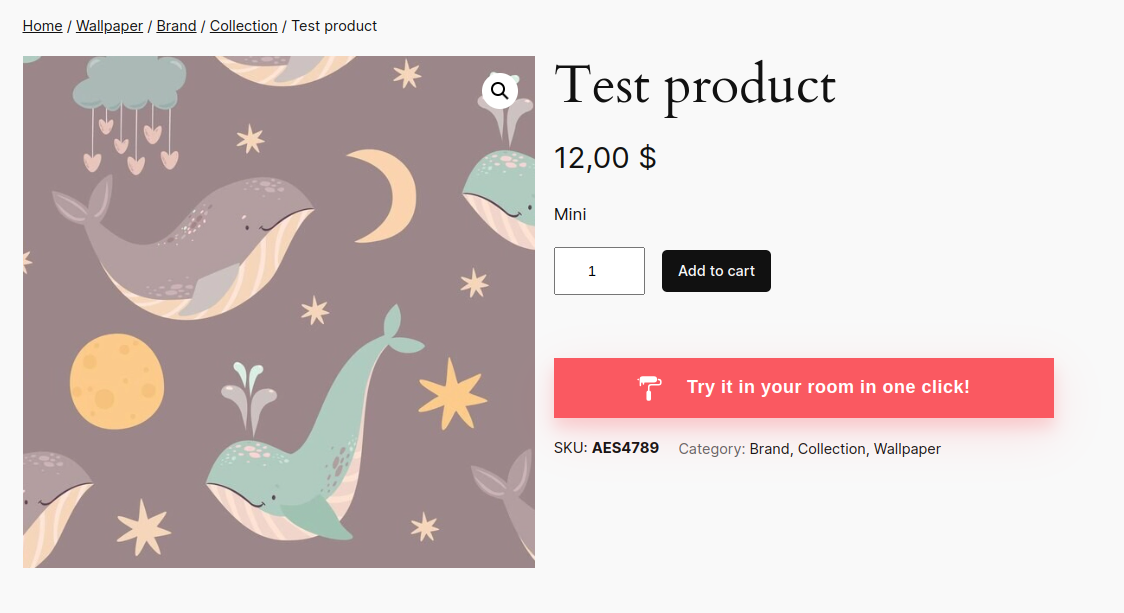
Integration Example A button on the website's product page
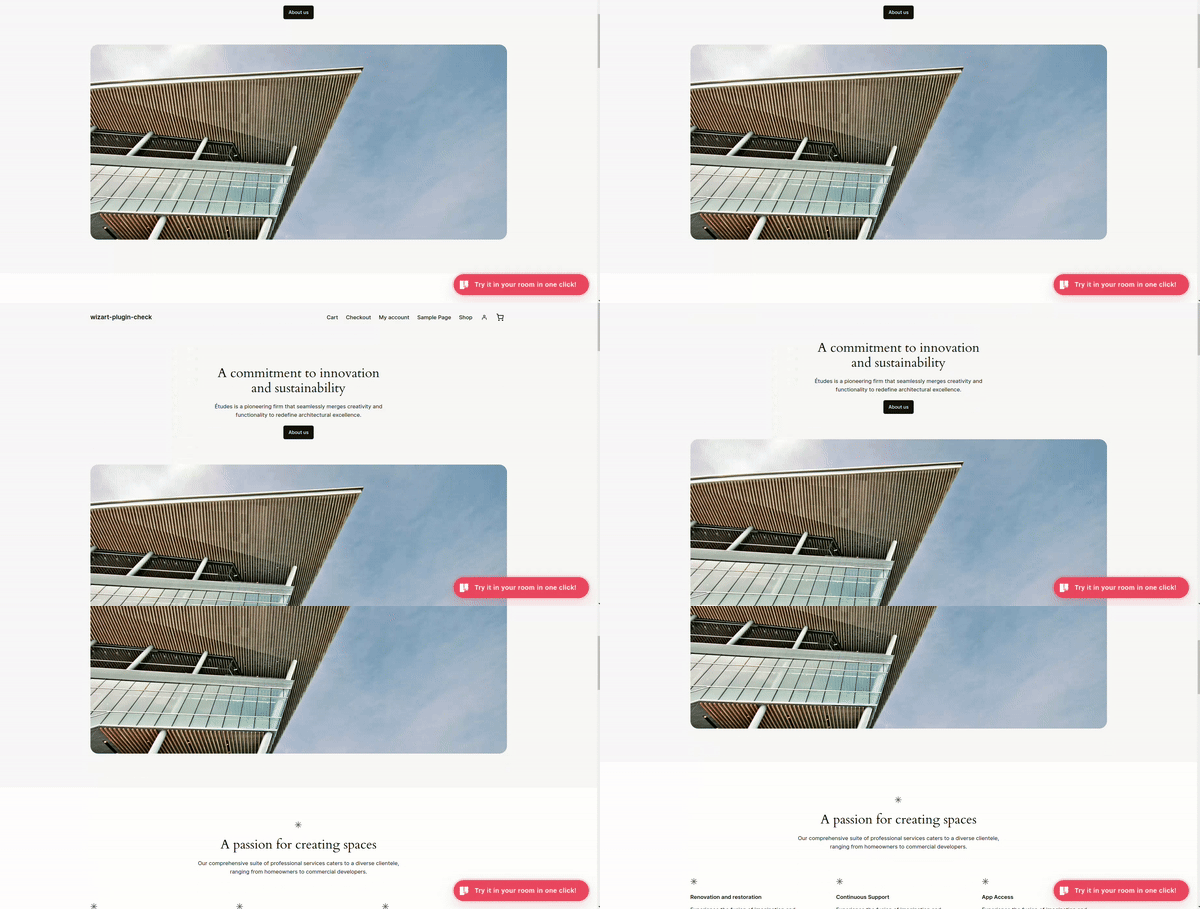
Integration Example A fixed button on the website's homepage
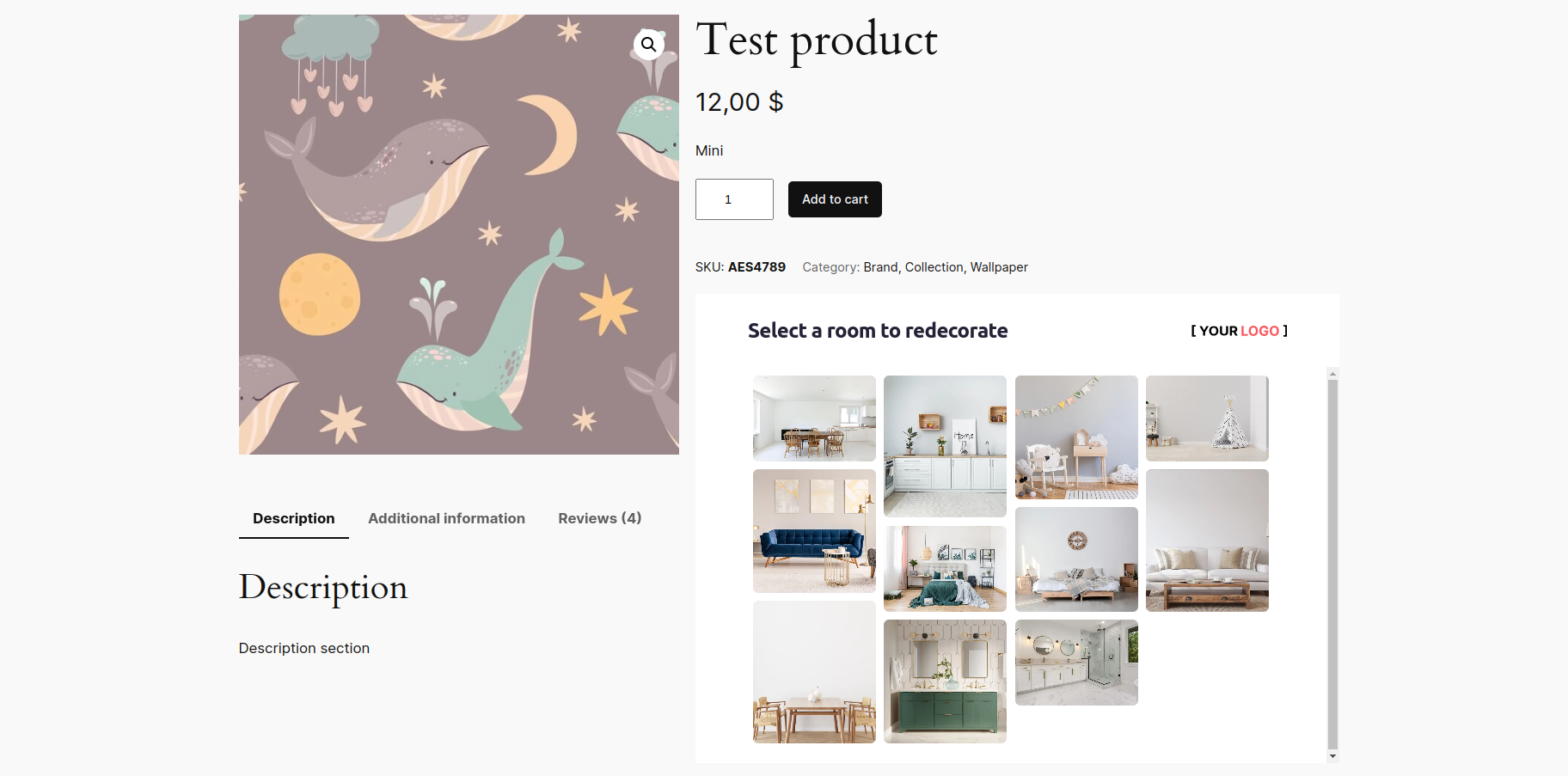
Integration Example An iframe integration on the website's product page

General Parameters

Go to PIM Admin -> Configuration -> Web and copy API Token


Api token - generated and issued by Wizart Administrator.


Enable the use of the product name as SKU on product pages.

Attention! If this option is enabled, the product name will be used as SKU.


Need to indicate from which part of string in CSV file need to be got. More information you can find here.


Need to indicate in which language product’s should be displayed. More information you can find here.


The room with the selected uuid will be opened.


Skipping step a room selection and open any first room.


For deactivating uploading photo.

A button on the website's product page

Activates the wizart visualizer button on product pages.

Attention! The button only appears for those products that have an SKU and they match the SKU in the PIM admin (https://pim-admin.wizart.ai/admin).


To display a button in only one location, use the required first method. If you want your button to appear in multiple places on a single page, use the second method.

Attention! If you specify both values, the value specified in the "elements" field will be selected as the primary one.


A CSS selector to select an element on the page to insert a button where you want.


A CSS selector to select multiple elements on the page to insert buttons where you want.


A CSS selector is used to choose an element on the page where you want to insert the button.


This represents the text to be displayed on the button. The default value is "Try it in your room in one click!".


Tooltip position towards the button. Available values are top, right, bottom, left (the default value is top).

Integration Example


This represents the text to be displayed on the tooltip. The default value is "See it in your room!".


Glitter on the button.


Class to be set for the button element on the page. Mostly, using to change more style, that our default parameters can’t (e.x. box-shadow).


Button border-radius.


Button background color.


Button text color.


Max button width.


Max button height.


Style of button. For example: 2px solid.


Link to the icon that will be displayed on the button.


The name of the function to be in the global scope. The function will be called when the visualizer is loaded.


The name of the function to be in the global scope. The function will be called when the visualizer is closed.


The name of the function to be in the global scope. The function will be called when the visualizer is opened.


A CSS selector to select an element on the page to insert the fitting room where you want. The best way to put iframe is “before body“.


The insertion position of the element. Values: append, before, after. default value: append. The best way to put iframe is “before body“.

A fixed button on the website's homepage


A CSS selector to select an element on the page to insert a button where you want.


A CSS selector is used to choose an element on the page where you want to insert the button.


Font size of your button.


This represents the text to be displayed on the button. The default value is "Try it in your room in one click!".


Tooltip position towards the button. Available values are top, right, bottom, left (the default value is top).


This represents the text to be displayed on the tooltip. The default value is "See it in your room!".


Tooltip position towards the button. Available values are top, right, bottom, left (the default value is top).


Glitter on the button.


Class to be set for the button element on the page. Mostly, using to change more style, that our default parameters can’t (e.x. box-shadow).


Button border-radius.


Button background color.


Button text color.


Max button width.


Max button height.


Style of button. For example: 2px solid.


Link to the icon that will be displayed on the button.


The name of the function to be in the global scope. The function will be called when the visualizer is loaded.


The name of the function to be in the global scope. The function will be called when the visualizer is closed.


The name of the function to be in the global scope. The function will be called when the visualizer is opened.


A CSS selector to select an element on the page to insert the fitting room where you want. The best way to put iframe is “before body“.


The insertion position of the element. Values: append, before, after. default value: append. The best way to put iframe is “before body“.

An iframe integration on the website's product page

Activates the wizart visualizer iframe on product pages.

Attention! The button only appears for those products that have an SKU and they match the SKU in the PIM admin (https://pim-admin.wizart.ai/admin).


Insert location of the iframe on product page.


A CSS selector to select an element on the page to insert an iframe where you want.


A CSS selector is used to choose an element on the page where you want to insert the button.